The Workout Player
Last updated: June 2026
The **Workout Player** is the core component of the Workout Time App. It is designed to guide you through your training sessions seamlessly, keeping you focused on your movements without unnecessary screen interactions.
1. Player Structure (Aufbau)
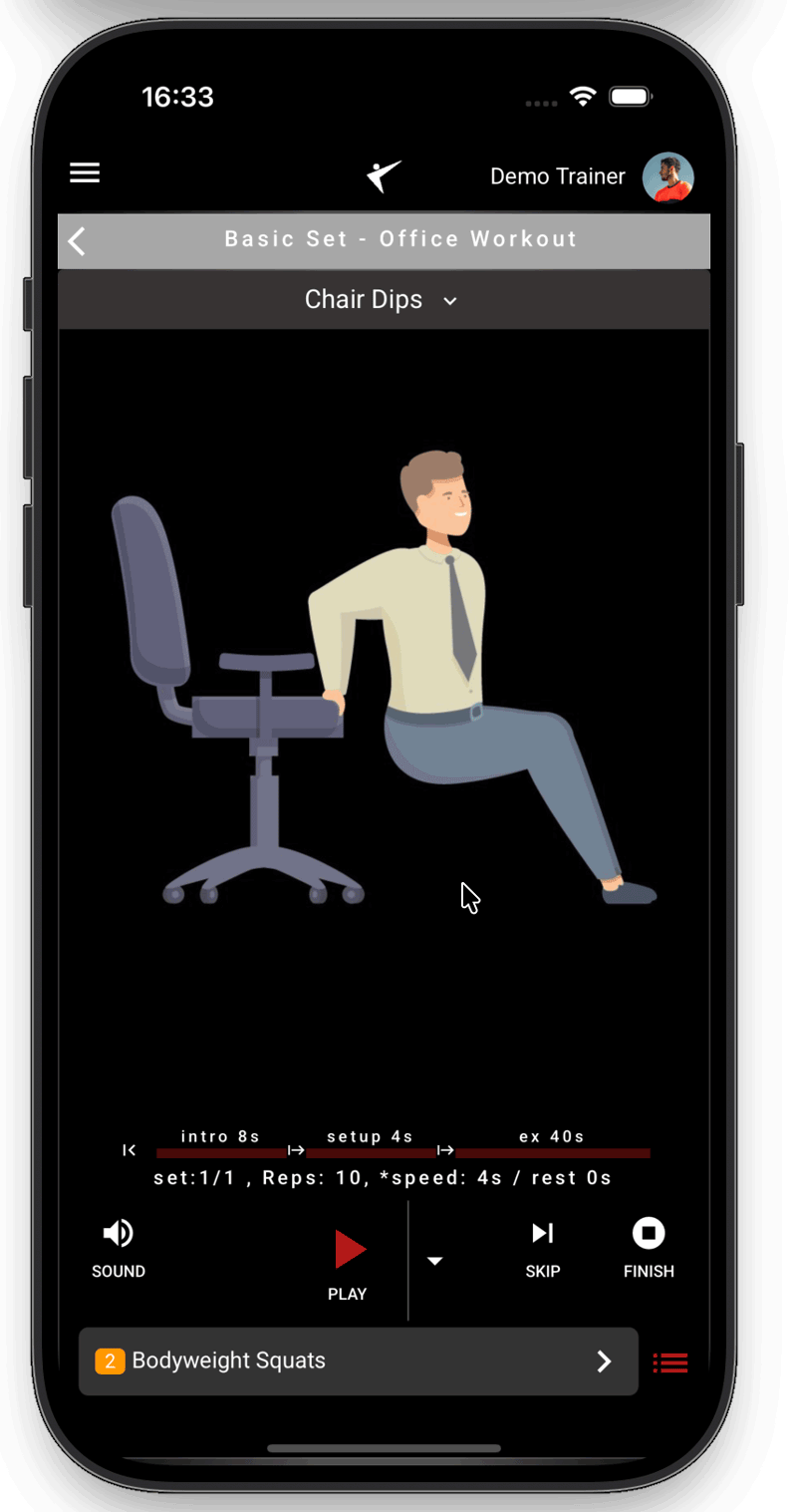
The Workout Player screen is divided into 5 distinct functional areas:
-
Header (Kopfbereich): The top section of the player contains two main parts:
- Workout Name: Displays the back button and the name of the current workout plan (e.g., Basic Set - Office Workout).
- Active Exercise Name: Located directly below the workout name, showing the active exercise (e.g., Chair Dips) with a dropdown menu arrow to quickly switch exercises.
- Media Panel: The main center section displaying active visual instructions (static images, loop animations, standalone videos, master videos, or YouTube).
- Info & Progress Panel: Positioned below the media panel, showing the horizontal timing timeline (intro, setup, ex) and real-time parameters (sets, repetitions, tempo/speed, rest).
- Control Panel: Located below the progress panel, hosting four primary buttons: Sound, Play/Pause, Skip, and Finish.
- Up-Next Preview: The bottom bar displaying the upcoming exercise title (e.g., Bodyweight Squats) and a drawer button to open the slide-out exercise list.
Exercise Phase Cycles
Every exercise in your workout transitions through three optional phases:
- Intro Phase: Introduces the exercise with text descriptions, tips, or demo loops. Can be read out loud via text-to-speech.
- Setup Phase: A short countdown (e.g. 5s) letting you get into position before the active timer starts.
- Training Phase: The active work phase where sets and repetitions are tracked.
2. Playing Workouts (Workouts abspielen)
When you start a workout, the player initiates according to your playback preferences. You can control sets manually or let the player guide you.
To start the session, click the large **Get Started** button. The player will count down any setup time and launch the first exercise.
3. Control Panel
The control panel at the bottom of the screen displays real-time progress and timeline phases:
- Real-Time Phase Tracker (Timeline): The control panel displays horizontal progress bars showing the active workout phases (Intro, Setup, and Exercise) with active timers. Each phase progress bar automatically turns green when completed, giving you a clear visual of your actual position in the current exercise.
- Split Play & Next Buttons: Let you run, pause, or skip sets and exercises.
4. Finishing a Workout (Workout beenden)
You can end a workout session at any time or let it complete naturally:
- Manual Finish: Tap the **Finish** button (`stop_circle` icon) on the control panel to stop the workout early.
- Completion Prompt: Upon finishing, the player prompts you to save the completed workout results directly to your Training Calendar to keep your stats updated.
5. Navigating Workouts (Im Workout Navigieren)
Navigating is simple, even during intense training. You have two main ways to navigate:
-
Gesture Controls (Swipes):
- Swipe Right: Sound & Voice panel (adjust volume, speech engines).
- Swipe Left: Exercise Selector list to preview or jump to specific exercises.
- Swipe Up: Workout Results calendar panel.
- Swipe Down: Quick Play Settings panel.
- Touch & Hold: Tap and hold the screen to overlay visual arrow controllers corresponding to these swipe paths.
6. Media Formats (Medien)
Workout Time adapts to multiple exercise media configurations:
- Text & Timer: A clean progress circle with a countdown.
- Images: Shows static demonstration slides with a timer overlay.
- Standalone Video: Plays short loopable video files explaining the exercise form.
- Master Video: Plays a single continuous video file and automatically seeks to the correct time markers.
- YouTube Integration: Connects directly to YouTube videos on-screen.
7. Play Settings
You can configure the active player parameters by swiping down or in the settings dropdown menu:
- Autoplay (AutoOn): Sets the player to run automatically. Toggling this off switches the player to Stop & Go (StopNext) mode, requiring you to manually click "Next" after each set.
- Play Intros: Toggle exercise description intros.
- Show Setup Time: Enable or disable preparation countdowns.
- Audio Beeps: Toggle start/stop audio signals.