Last updated: June 2026
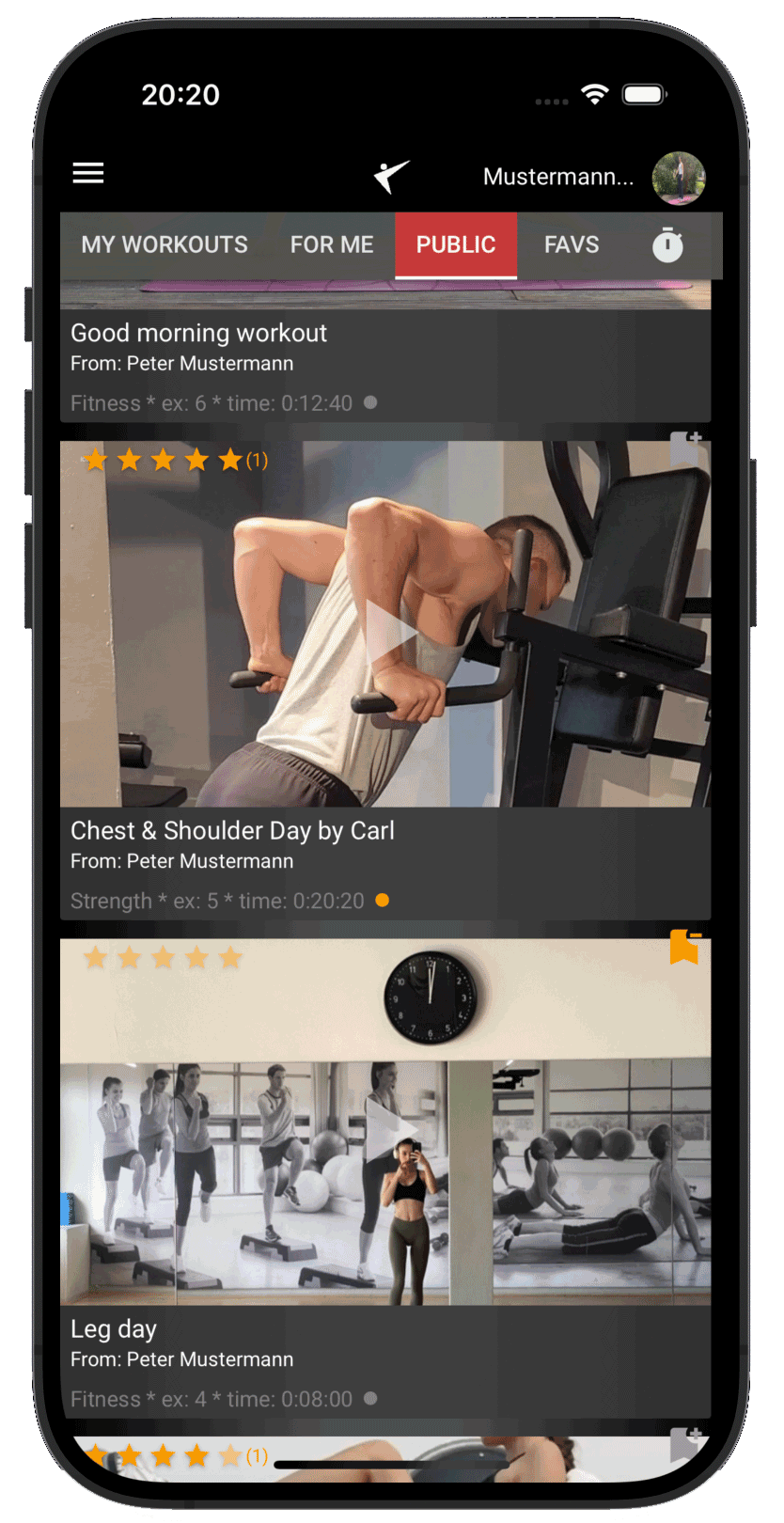
The main screen of the Workout Time App is your workout hub. Here you can filter workouts, see stats, manage favorites, download them for offline use, or launch them directly in the player.
The Dashboard Tabs
At the top of the dashboard, you will find tabs to quickly toggle between different collections of workouts:
- My Workouts: Your personal list. Contains workouts you created or duplicated. (Only visible when logged in)
- For Me: Workouts directly shared with you by a coach or friend. (Only visible when logged in)
- Studio: Dynamic tabs representing custom workouts provided by your local fitness studios or sports clubs. (Only visible when logged in)
- Public (or Public Workouts / Free Workouts): A list of pre-configured templates and community workouts open to everyone.
- Favorites: Your bookmarked workouts for quick access. (Only visible when logged in)
- Timer: A built-in standalone interval timer. Perfect for custom timings without playing a plan. After the workout you can save it as a new workout for later use.
The Workout Card
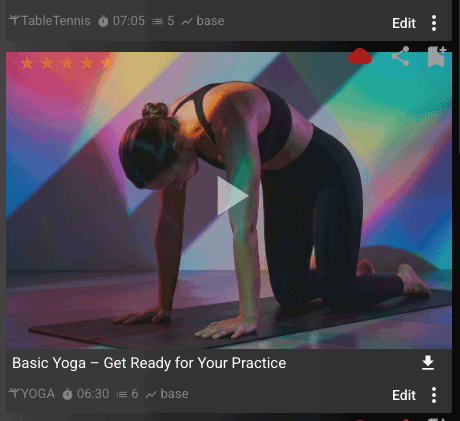
Each workout is represented by a card showing a preview and several useful indicators:
Workout Card Details
- Workout Image & Play Button: The preview image is clickable. A large play icon overlays the center; tapping it immediately starts the workout player.
- Workout Name & Trainer: Displays the name of the plan and, for shared or public workouts, the creator's name.
-
Workout Parameters (Bottom Bar):
- Sport Type Icon: Visualizes the workout category (e.g. gymnastics, running).
- Timer Icon (Time): Shows the estimated duration.
- List Icon (Exercises Count): Shows the total number of exercises.
- Difficulty Level: A colored chart symbol representing Easy, Medium, or Hard difficulty.
- Edit Menu (Three dots / More): Bottom right. Access functions like edit, delete, view details, or clone/copy. (Only shown for your own workouts)
-
State & Action Icons:
- Bookmark/Favorite: Top-right corner. Orange bookmark if added to your favorites, grey if not.
- Share: Share the workout via link or with other users.
- Cloud: Indicates that the workout is shared publicly.
- Download (Offline): Downloads media and plans to local storage. Displays a red "devices" icon once saved for offline use.
Guest Access Restrictions
Important: If you are browsing the app as a guest (not registered/logged in), you will only see the Public Workouts and Timer tabs. Features like creating plans, downloading for offline playback, editing, favoriting, and sharing are deactivated or hidden until you register a free profile.